squash, undo latest commits, and more

I believe nowadays every development should be done along with Git, a powerful collaboration tool to track every single change that occurs in a project so that developers can have a long history of things that have been done. This is very useful, especially if we are working in a team. But I personally will add it to all my projects even though I am working alone. Why? Because I can easily keep track of what I did in the past and quite quickly trace the bugs and mistakes.
In this article, we are going to discuss the useful tricks that we can use to manage our Git commits cleanly.
- Combine multiple commits (squash)
- Edit old commits message
- Undo the latest N commits
- Remove old commits (in the middle of the history list)
- Push modified commits (already pushed before) to your remote repository
As mentioned in the Git document, it basically does not provide a modify-history tool, but we can make use of the rebase tool to interactively modifying the old commits.
Do I Need To Modify My Old Commits?
First, let’s understand some scenarios.
Scenario 1.
Most of the time as a developer, when updating the code, I always want to keep it in Git so I can track the changes even though they are very small (to easily track which code is working and which has bugs). So I put a simple message just for me to know what was changed. I keep adding more commits for every small change. After a while, when the task is completed, I need to combine all those small changes into a single commit. Yes, that requires a trick to accomplish.
Scenario 2.
In the second scenario, I need to edit some of my commit messages (which I already added before). For example, it’s a development practice to always prepend the commit message with a ticket issue number such as “issue-781: Fixed glitches on button animation in Setting page” or “#541: Resolved constraint error.”
Be careful
Modifying commits that have already been pushed to a server is not recommended. It will confuse other developers with the history changes. Avoid doing it unless it is very important and other team members are aware of the modification.
So, how can we manage the old commits?
1. Combine Multiple Commits (squash)
As mentioned in the first scenario above, we don’t want to miss any changes, so we keep making Git commits for small updates. Let’s say we have a task “Create profile page,” and we have five commits doing the subtasks. In the end, once a module is complete, we want to combine all commits into a single commit and rephrase the message.
First, open Terminal and go to the specific project directory. Run git log to check the current commits that are already done. In the image below, I have five of the latest commits related to the same task that I want to combine.
$ git log
Here is the simple output using the glog command of zsh.

Step 1.
Run this command to modify the previous N commits. In this case, I have five commits to be squashed and combined into a single commit. The 5 at the end of the command indicates how many commits we are going to rebase. It may differ, depending on how many commits you are modifying.
$ git rebase -i HEAD~5You will get similar output as shown below interactively. It will show the common terminal editor you always use (in my case is the vi editor). The five commits displayed at the top are ready to be modified. The bottom (in the yellow box) is the available operation we can perform.

Step 2.
Change the word pick to s or squash to squash those four commits and keep the oldest commit at the top. Then save the changes (depends on the editor — for vi editor, it’s Esc, then :wq”).

After saving, you will be prompted with the message asking you to write the commit message.
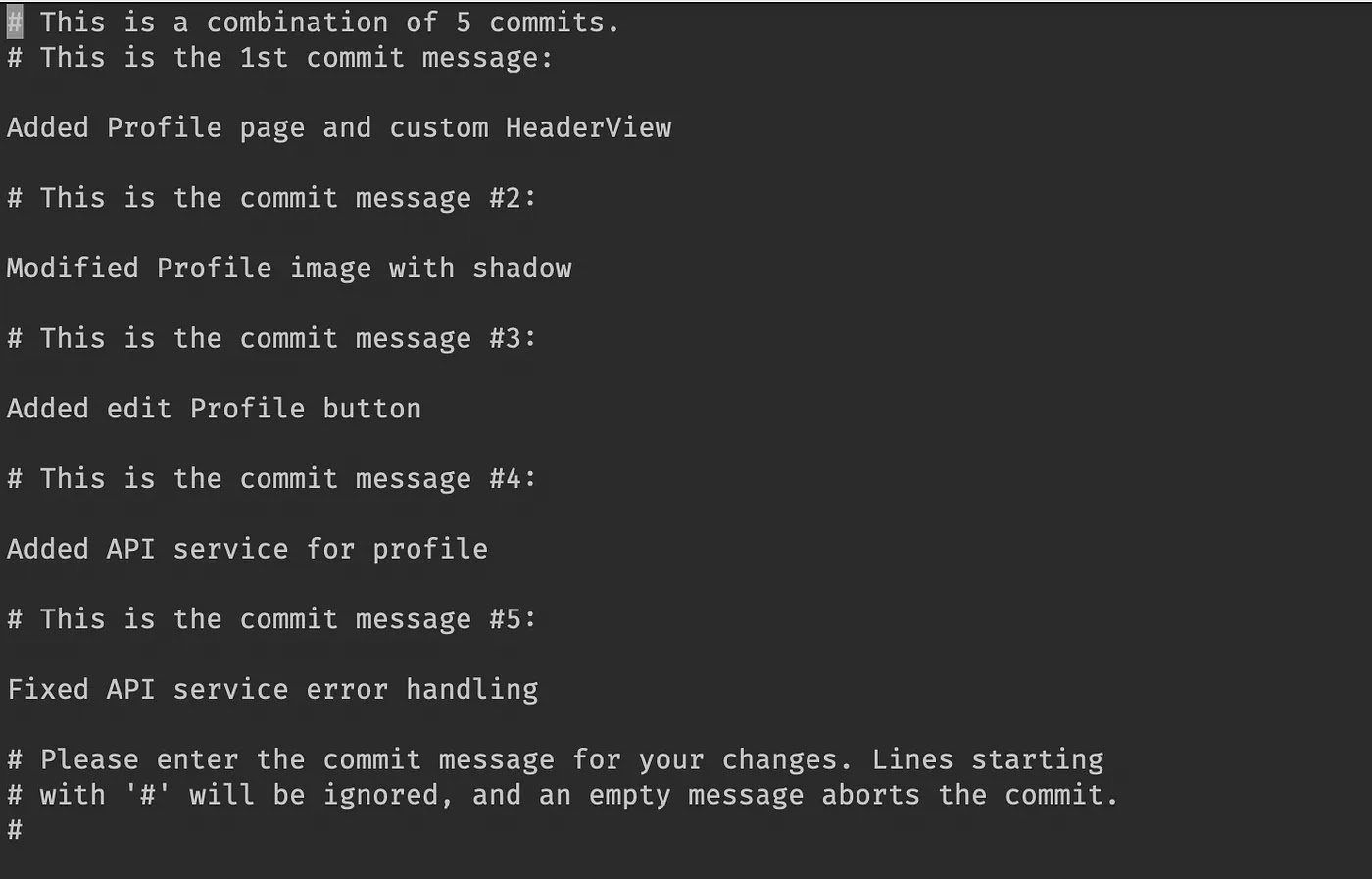
Step 3.
There are three options to update the message.
1) Immediately save without changing anything. The result that you will get is a commit with all messages (written in multiple lines).
2) Remove all previous messages, and write a new one. (Sometimes I use this to simplify the commit message.)
3) You can amend the new message at the top and leave other commit messages (recommended). For example, a new commit added is “Module-134: Completed Profile module.” So we can still keep all previous messages. The final commit message will look similar to what is shown below.
Module-134: Completed Profile module // newly addedAdded Profile page and custom HeaderViewModified Profile image with shadowAdded edit Profile buttonAdded API service for profileFixed API service error handling
In this tutorial, we will use the third option. You add a new message at the top as a combined message. The output will be like this. (Take note that the text after # will not appear in the commit message, so you can ignore it.)

Once it is successfully saved, the Terminal output will be similar to that below.
$ git rebase -i HEAD~5[detached HEAD c4aeecc] Module-134: Completed Profile moduleDate: Sun May 9 10:05:08 2021 +08005 files changed, 5 insertions(+)create mode 100644 ProfileViewController.swiftcreate mode 100644 ProfileHeaderView.swiftcreate mode 100644 ProfileApiService.swiftSuccessfully rebased and updated refs/heads/master.
Cool, let’s check what happens in the commit that we have modified. You can check using git log or Sourcetree.

Yay, we did it. Now it has become a single commit with all five messages.
How about this?

Take a look at the image above. It shows the common commits we always do when we try to fix some nasty bugs. This trick is very useful to make it clean. Run this command and follow the same steps as discussed above. Awesome!
$ Git rebase -i HEAD~42. Edit Old Commits Message
“Oh no, I just need to update the typo in my commit message!”
Yes, that’s also a common thing we do, make a Git commit with a typo. In this part, we will just learn how to simply edit the commit message. This is necessary when we need to prepend the old message with the ticket/issue number or it might have a typo.
The command is the same as before, except the option that you need to choose is r, or reword.
In this example, I need to prepend all of these four commits with a Jira-specific issue number, namely “WR-453.”

Step 1.
Run the same Git rebase command, in which N equal to 4.
$ git rebase -i HEAD~4Step 2.
Change the pick to r or reword, and save.

Next you will be prompted to edit those messages interactively one by one four times. Nice. Keep editing each message and saving until you reach the end of the steps.
Take a look at the screen below. It shows at the top of the message that we are editing, and highlighted at the bottom are notes on the steps that are done and remaining.

Once done, the result shown in the terminal output will be similar to that below. Also, we may check using git log to make sure the commit messages were updated accordingly.
$ git rebase -i HEAD~4[detached HEAD 71ebada] WR-453: Fix crashes cause by improper nil handlerDate: Sun May 9 17:31:47 2021 +08001 file changed, 1 insertion(+)create mode 100644 ViewController.swift[detached HEAD d48428a] WR-453: Again fix as previousDate: Sun May 9 17:32:19 2021 +08001 file changed, 1 insertion(+)[detached HEAD 4c74ecc] WR-453: Added viewModel for Auth pageDate: Sun May 9 18:06:45 2021 +08001 file changed, 1 insertion(+)create mode 100644 AuthViewModel.swift[detached HEAD a45b5fc] WR-453: Added auth vc and viewModelDate: Sun May 9 20:16:50 2021 +08002 files changed, 2 insertions(+)Successfully rebased and updated refs/heads/main.
3. Undo the Latest Commit
The undo process is a bit dangerous, especially if you want to undo an important or big commit. Generally, there are two ways to undo a commit (other than using rebase).
Undo a commit and keep the files in stages (recommended)
Using this method, you won’t lose the changes and you can revise the files again for future modification or maybe simply throw them into the stash. The “stages” normally happen when we call the Git add command (remember the stage and unstage).
The process behind this command is to reset the Git HEAD to the previously pointed commit and move the affected files from the commits after the HEAD into stages.
For example, in my case here, I have two commits to undo. You may change the number at the back depending on how many commits you want to undo. If you need to undo just the last commit, so change it to 1.

Run the below command to execute with --soft flag to keep the files on staging.
$ git reset --soft HEAD~2Then, when you run git status to check the result, you will see that the undone file is still there in the stages. Great!

Undo a commit and discard all changes
$ git reset --hard HEAD~2Be careful and make sure you specify the right number to undo at the end of the command. It is quite similar to the previous safe undo, except this will replace the--soft with--hard flag to ignore the changes in undo commit. You may refer to this detailed discussion on undo commit in Stack Overflow.
4. Remove Old Commits (in the Middle of the History List)
This is rarely implemented because we should keep the old commits although there were mistakes in the commits. But for the commits that are still in local development and need some cleanup, we could use this trick.
Again we need to check which targeted commit we want to remove and count the N from the latest commit. Then we use the same git rebase command as demonstrated in the first trick, but now with the drop option.
In the below example, I want to remove the old commit (“Added parallax header…”) that is having bugs and currently not needed.

Run this command and change pick for the targeted commit to d or drop. In this case, we have to make sure we rebase until six commits are done (count from top).
$ git rebase -i HEAD~6The terminal output will interactively prompt for which commit to modify.

Great! Once done, the terminal will show the success message:
Successfully rebased and updated refs/heads/main.Let’s run the Git log to make sure the commit has disappeared from this world. Awesome!

5. Push Modified Commits (Already Pushed Before) To Remote Repository
There are a few cases where we need to overwrite the remote Git record. For example, we might need to edit our commit message (prepending a Jira ticket number or rephrasing), remove an unnecessary commit that caused an issue for the project, or clean up the Git history.
Thus we could pull all recent commits and begin modifying in local. However, in order to push to a remote server, we need to add a flag to inform the server that we are making the changes by force. Otherwise, the server will reply with an error on updating a different history than that already recorded.
$ git pushTo github.com:xmhafiz/GitExercise.git! [rejected] main -> main (non-fast-forward)error: failed to push some refs to 'github.com:xmhafiz/GitExercise.git'
Therefore, we need to run the push command with the --force-with-lease flag, as shown below (success output).
$ git push --force-with-lease......To github.com:xmhafiz/GitExercise.git+ 183f370...b33950e main -> main (forced update)
Awesome. Now you understand how to properly modify old commits. Try to implement these techniques carefully, and please do some practice before trying them in a real project.
Hopefully, this article will help you improve your development skills. Thanks for reading. Feedback is most welcome. Happy Git-ing!
